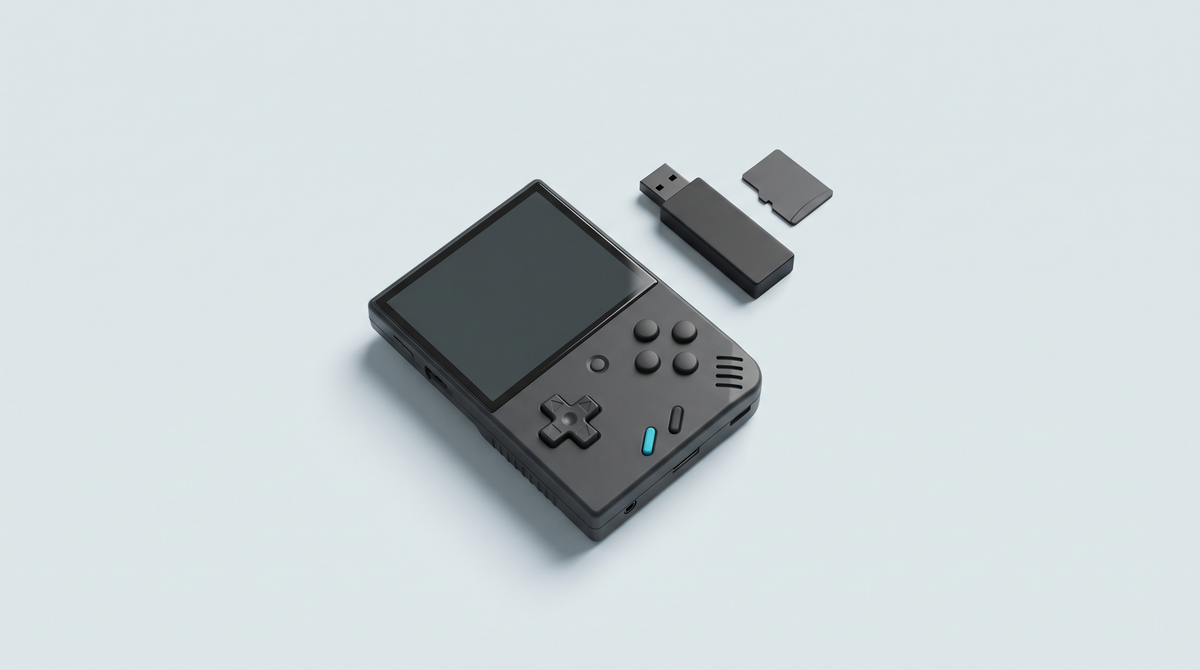
Fifty hours of play can disappear in a second, without the slightest warning. On a retro handheld console, everything rests on a microSD card, and nothing is protected by default. By the end of this guide, you will know how to tell the game's internal save apart from the save state, locate your files on the card, copy them to a computer and set up a simple routine that will stop you losing everything.
What you need
- Your console and its microSD card.
- A card reader and a computer.
- A dedicated folder on your computer, and if possible a second storage device.
- Five minutes a month: that is all a good habit takes.
Step 1: understanding the two types of save
A retro handheld console produces two categories of save file, with very different properties. Confusing them is the number one cause of lost progress.
The game's internal save
This is the one the original game offered by itself: the save menu, the checkpoint. The emulator reproduces the original save memory and writes it to a separate file, placed next to the game or in a dedicated folder.
Its qualities: it is robust and portable. It survives a change of emulator, an update, often even a change of interface. It is your main safety net. Its limit: it only exists if the original game offered a save system.
The save state
The save state is a complete snapshot of the emulated machine's memory at a given moment. You trigger it whenever you like and reload it in a fraction of a second. On demanding games it is a huge convenience.
Its weaknesses are real. A save state is tied to the emulator and its version: after an update or a change of core, it can become unreadable, with no way to convert it. It also depends on the exact game file it was created with, and a quick save sometimes overwrites the previous one without confirmation.
The rule to remember
Use save states for day-to-day convenience, but always end a session with an internal save if the game allows it, and make one before any technical operation.
Step 2: locating your save files
Locations vary between models and interfaces, but two approaches dominate.
First approach: the file is placed next to the game, in the same system folder, with the same base name and a different extension. This is common on simple interfaces.
Second approach: all the files are centralised in a single saves folder, at the root of the card or in the emulator's configuration, sometimes with one subfolder per system.
- Switch the console off and remove the microSD card, then insert it into the reader.
- Open the card on the computer and note the modification date of the files.
- Run a search by date: the files modified during your last gaming session are your saves.
- Check that the names match your recent games to confirm your find.
- Write down the exact path: you will never have to run this search again.
If you find nothing, do not change the card's structure at random: check the product page or contact our customer service. The folder structure depends on the model.
Step 3: copying your saves to a computer
The principle is simple, and that is exactly why it gets neglected. A copy takes less than a minute.
- Create a clearly named folder on your computer, for example one named after your console.
- Inside it, create a dated subfolder in year-month-day format.
- Copy the entire saves folder into it, or the save files you identified in the previous step.
- Do not move the files, copy them: the original must stay on the card.
- Eject the card properly before removing it from the reader.
- Once a quarter, copy the folder onto a second device: an external drive, a USB stick or online storage.
Dated folders give you a history: if a save gets corrupted, you go back to last month's state instead of starting from scratch.
The case of interfaces with sync
Depending on the model, some interfaces automatically sync saves to an online service. That is convenient, but it is not a full backup: syncing also propagates corruption and deletions. A manual, time-stamped copy remains the only genuinely protective mechanism.
Step 4: why a microSD card fails without warning
A microSD card is not an archival medium. It is flash memory, made of cells that wear out with every write. The controller replaces failing cells with spare ones, for as long as there are any left.
The problem lies in the nature of the failure. A hard drive makes noise, slows down, gives you signs. A flash card works perfectly right up until it doesn't: it switches to read-only all at once, or becomes unreadable between two power-ups.
The aggravating factors are well known: abrupt shutdowns during a write, removing the card without ejecting, heat, humidity and, of course, counterfeit cards. Our guide Choosing your microSD card for a retro console explains how to spot them and how to test a new card.
The conclusion is brutal and liberating: assume your card is going to fail. Games can be copied again. Fifty hours of progress cannot.
Common mistakes
- Switching the console off abruptly after saving. The write is not always finished when the confirmation message appears. Wait a few seconds, then use the normal shutdown procedure.
- Relying on save states alone. They vanish at the first emulator update or the first change of core. Systematically make an internal save before any technical operation.
- Renaming a game file after the fact. The save is tied to the file name. Rename the game and the emulator can no longer find the matching save. In that case, rename the save file identically, keeping its extension.
- Formatting or replacing the card without copying first. Games can be transferred again in an hour, but nothing restores lost progress. Always copy your saves before touching the card.
- Removing the card without switching the console off. This is the most efficient way to corrupt an entire volume. Shut down completely, never just sleep.
- Keeping a single copy. A copy on a computer that fails is worth nothing. Duplicate it onto a second device.
Frequently asked questions
Can I transfer my saves to another console?
Often yes for internal saves, provided the emulated memory format is identical and the game file has the same name. Save states almost never transfer between different emulators. Test it before deleting the old file.
Are my saves lost if I change firmware?
Not necessarily, but nothing is migrated automatically: file locations change from one system to another. Copy all your saves to a computer before the operation, then put them back manually into the new folder structure once the system is in place and the path identified.
How often should I back up to a computer?
One copy a month suits regular use. Add one before any technical operation: an update, a change of card or interface, a reorganisation of the folders. Those are the moments when progress disappears, far more often than during a hardware failure.
Can a card from a big brand fail?
Yes. A good brand lowers the probability and offers a warranty you can actually use, but no flash memory lasts forever and no failure announces itself. The brand improves your odds, it does not excuse you from copying your files. That is the only protection that really works.
Going further
To complete this routine, choose reliable storage with Choosing your microSD card for a retro console, master save states with RetroArch: the settings that change everything, and if you are thinking of changing system, read Custom firmware: should you install one? To start from the basics, our tutorial How to add games to a retro handheld console covers everything from the beginning.
Finally, a reminder of the framework: consoles are sold without games, in France a backup copy is only allowed for strictly private use and if you own the original, and there is a wide catalogue of royalty-free games as well as independent productions distributed legally.
Browse our microSD cards, our handheld consoles and our protective cases and pouches.