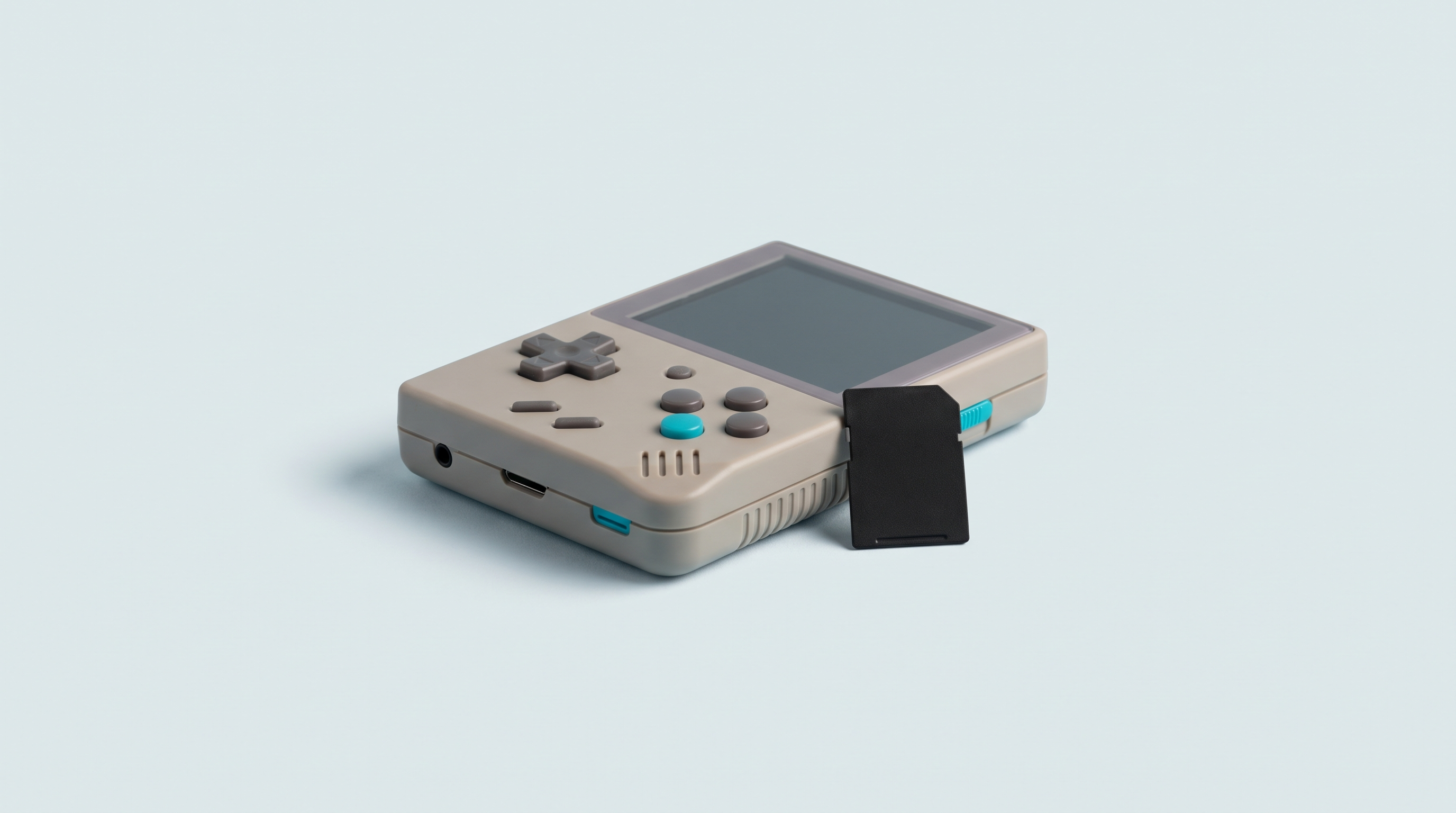
The Miyoo Mini Plus comes out of the box with a stock firmware that works, but that soon shows its limits: few settings, no clean way to resume a game, a fixed memory card layout. Onion is the community's answer to that. It is a complete system that lives on the microSD card, with RetroArch kept up to date, around a hundred emulation cores and a package manager so you only install what you actually use. Good news for anyone hesitating: Onion doesn't touch the console's firmware. Everything happens on the card. Here is how to go about it, the real pitfalls, and how to go back in thirty seconds.
Onion, what it really is
The official documentation is unambiguous: "Onion doesn't modify the firmware of your Miyoo Mini so this is not a CFW". So it isn't custom firmware in the strict sense. The original system stays burned into the console; Onion occupies the microSD card and takes over at boot. Putting the factory card back therefore gives you the console exactly as it was. It is the most comfortable alternative system on the market to try out.
The less pleasant corollary: Onion is a strictly Miyoo ecosystem. The project targets the Miyoo Mini and the Miyoo Mini+, nothing else. There is no point trying it on an RG35XX or a TrimUI Brick. For those machines, our firmware compatibility table shows which system matches which console.
| Machine | Onion | Requirement noted in the documentation |
|---|---|---|
| Miyoo Mini (revisions up to V4) | Yes | Stock firmware 20220419**** or newer. For the V4 revision, firmware 2023 10 27 1401 or newer for 752×560 display. |
| Miyoo Mini Plus | Yes | Onion V4.2 as a minimum: earlier versions don't support this hardware. |
| Anbernic, TrimUI, Powkiddy, Retroid… | No | A project dedicated to the Miyoo Mini and Mini Plus alone. |
Your firmware version is shown under Settings › Device Info › Version. That is the only requirement to check before starting.
What Onion brings, and what it doesn't
The gains you'll notice within the first hour:
- The GameSwitcher: you pick a game up where you left it, moving from one to another as you would on a phone.
- A recent RetroArch, optimised cores, filters and overlays, plus a few dedicated emulators (PCSX, ScummVM, Gambatte).
- A package manager to choose which systems and applications are installed.
- Button shortcuts: rewind, fast forward, screenshots, volume.
-
Centralised saves in a single
/Savesfolder. - More than sixty preconfigured ports, a video player, a guest mode.
Now the limits. The interface is in English and the official documentation offers no French translation of the main menu. The network features (over-the-air updates, box art, network play, Samba or FTP shares) are reserved for the Miyoo Mini Plus, the only model fitted with Wi-Fi. And the chip remains modest: no PlayStation 2 and no GameCube. You stay with SNES and earlier, PlayStation 1 and Game Boy Advance, all handled very well.
The hardware to get ready
A computer, a card reader, and above all a second microSD card. That is the most important point in this article.
On the supplied card, the documentation is blunt: "The SD card included with the Miyoo Mini is known to be slow, and will likely ruin your experience and/or data". One more reason to go with a serious card; our guide on choosing a microSD card sets out what matters.
On the other hand, forget the image-flashing software. Onion isn't distributed as a disk image: it is a ZIP archive whose contents you copy onto a formatted card. A formatting tool is enough. On Windows, the community project Onion Desktop Tools automates FAT32 formatting, downloading, installing and restoring the card.
Step-by-step installation
-
Identify your model and its firmware version: Mini or Mini Plus, then
Settings › Device Info › Version. -
Download from the official source, the releases page of the
OnionUI/OnionGitHub repository. The file is at the bottom of the release notes, in the Assets section, namedOnion-v4.x.x.zip. As we write, the latest stable version is V4.3.1-1, dated 24 June 2024, archiveOnion-v4.3.1-1.zip. A 4.4.0 pre-release appears on the same page: keep that for people happy to take the rough with the smooth. Check the page before installing, a newer version may have appeared. - Check what you have downloaded. Let's be honest: the project doesn't publish an official checksum, the only attached files being the ZIP and the source code. So there is no reference fingerprint to compare against. Your protection lies in provenance: download only from the official repository, never from a forum link.
-
Format the card in FAT32. Not exFAT, not NTFS. The method depends on the capacity.
The documentation advises against GUIFormat / fat32format, as file system errors have been reported beyond 128 GB.
Capacity Method given by the project 32 GB or less Your operating system's built-in formatter, set to FAT32. More than 32 GB Rufus, with Boot selection = Non bootable, Partition scheme =MBR, File system =Large FAT32, Cluster size =32 kilobytes(or16 kilobytesto be gentler on the card). -
Copy the folders to the root of the card. Unzip the archive and drop these seven folders at the root:
.tmp_update/,BIOS/,Media/,miyoo/,miyoo354/,RetroArch/,Themes/. Watch out for the first one: its name starts with a dot, so it is hidden by default on Windows as on macOS. Turn on showing hidden items before copying. And despite its name,.tmp_updateis not temporary at all: it must stay on the card permanently. -
First boot. Insert the card and switch on. The quick guide appears, then the package manager opens: choose the systems and applications to install, confirm with two presses of
START. At the end,Aswitches the console off on a Mini and restarts it on a Mini Plus. Don't cut the power during this phase. -
Copy your games, then refresh the list. From the
Gamestab,SELECTbrings up Refresh all roms: confirm withA. Without this step, a freshly copied library can stay invisible.
The settings to make straight afterwards
Everything is driven from the Tweaks application, Onion's system toolbox.
Language
Onion's interface is in English and will stay that way. RetroArch, for its part, handles its own language in its Settings menu, User section: as it takes care of most of the emulation, you get the essentials in your own language there. See our essential RetroArch settings.
Wi-Fi
On the Mini Plus only. Once the network is set up, you unlock updating through the Onion OTA update application, the Scraper that downloads box art, time synchronisation, network play and file sharing. On a Mini, everything goes through the card reader.
Buttons and standby
The Shortcuts application shows the button combinations: rewind, fast forward, screenshot, volume boost. Five minutes to go through them, and day-to-day use changes. If the console freezes on a black screen, the official move is to hold POWER for more than ten seconds, until the second vibration.
Where to put your games
A Roms folder at the root, with one subfolder per system inside it. Any BIOS files go in the BIOS folder at the root, with names and extensions being case sensitive. Subfolders for tidying are tolerated on one level only (for example Roms/GB/Hacks) and must not contain an apostrophe.
We won't go through the full folder tree again here: it is covered in our article on transferring games and the folder tree by firmware. For box art, the quickest route on a Mini Plus remains the built-in Scraper: from a game list, Y opens the Game List Options menu, from where you start fetching the images.
Pitfall number one
Always the same one: system folder names are case sensitive and differ from those on the original Miyoo card. The documentation says it in black and white: "Rom folder names are case sensitive and differ in Onion vs the stock Miyoo SD card".
The classic scenario: you copy the games folder over from the old card, you boot up, half the systems are empty. Nothing is lost, but Onion isn't looking under those names. Compare your folders with the ones Onion created at first boot, match the capitals letter for letter, then run Refresh all roms again.
A second frequent incident, with its official fix: if the console stays stuck on a black screen, plug the card into the computer and delete the cmd_to_run.sh file in .tmp_update. That switches off automatic resuming of the last game, the most common cause of this freeze.
Updating
On a Mini Plus connected to Wi-Fi, the Onion OTA update application does the job on its own. Otherwise, a manual update follows the same logic as the installation: unzip the new archive, copy the seven folders to the root, accept overwriting. The rest is triggered at the next boot.
The project states that saves, ROMs, BIOS files and configurations are kept, with a common-sense warning: save states don't always survive a change of core version. So finish with an in-game save, and copy the /Saves folder to your computer before the operation. Two special cases: if you are coming from version 3.9 or earlier, delete .tmp_update before copying; and if an installation goes wrong, copy the files again allowing yourself to skip BIOS, Icons and Themes, then reformat as a last resort, once Roms and Saves are safely stored.
Going back
This is where Onion is more forgiving than other alternative systems. Since it doesn't modify the firmware, restoring takes no particular procedure: you switch off, you put the factory microSD card back, you switch on again. The Miyoo system is exactly as you left it. That is why the golden rule of the second card is not negotiable.
If you did overwrite the original card anyway, there is a way out: Onion Desktop Tools can back up and restore a complete card, and Miyoo distributes images of its system. It takes longer, which is the whole point of the precaution.
To place Onion against the other systems, our guide on installing custom firmware (muOS, Knulli, ArkOS, ROCKNIX, Batocera) covers the rest of the machines. And if you are looking for the console to put Onion on, our Miyoo consoles section shows the models in stock, with the condition each one ships in on its product page.
Does Onion erase my console's original system?
No. The official documentation states that Onion does not modify the console's firmware: everything lives on the microSD card. Putting the factory card back restores the original system immediately.
Can I install Onion on an Anbernic RG35XX or a TrimUI Brick?
No, Onion is meant exclusively for the Miyoo Mini and Mini Plus. Those consoles have their own alternative systems, such as muOS, Knulli or ROCKNIX. Our firmware compatibility table shows the right system for each machine.
My library doesn't appear after installation, what should I do?
In the vast majority of cases it's the folder names: they are case sensitive under Onion and differ from those on the original Miyoo card. Correct them, then run Refresh all roms again from the Games tab with SELECT.
Should you check a checksum before installing?
The project doesn't publish an official fingerprint alongside its archive: the attached files are the installation ZIP and the source code. So there is nothing to compare. The real precaution is to download only from the official GitHub repository.
Are my saves kept during an update?
The project states that saves, ROMs, BIOS files and configurations are carried over, but warns that save states don't always work after a change of core version. Make an in-game save before the operation and copy the Saves folder to your computer.
Does Wi-Fi work on a standard Miyoo Mini?
No, the original Miyoo Mini has no Wi-Fi chip. Network updates, box art fetching, network play and file sharing are reserved for the Mini Plus. On a Mini, everything goes through the card reader.